- What is a Histogram?
- Histogram vs bar chart
- What is a Bihistogram?
- Make a Histogram:
What is a Histogram?
Histograms are similar to bar charts; they are a way to display counts of data. A histogram displays numeric variables in “bins”. A bin shows how many data points are within a range (an interval).
Usually, you choose the range that best fits your data. There are no set rules about how many bins you can have, but the rule of thumb is 5-20 bins. Any more than 20 bins and your graph will be hard to read. Fewer than 5 bins and your graph will have little (if any) meaning. Most graphs you’ll create in elementary statistics will have about 5 to 7 bins.
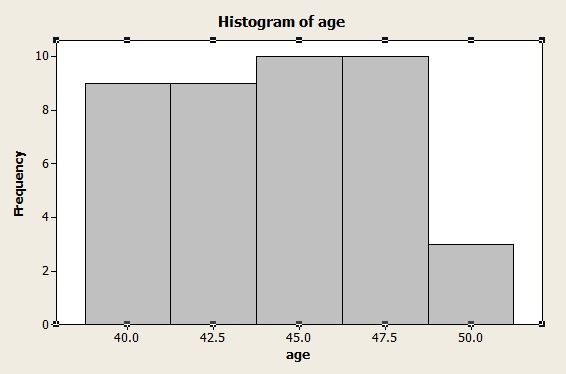
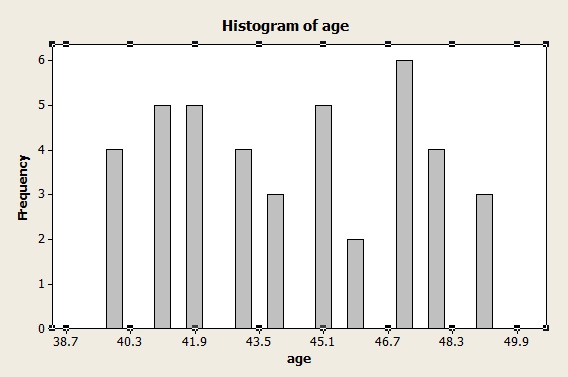
Another rule of thumb for bins is that if a value falls into two bins, place it in the upper bin. For example, if you are making a histogram of ages and your bins include 40-42 and 42-44, a participant who is 42 years old should be placed in the 42-44 bin.
Different software or textbooks use different conventions—some define intervals as [40, 42) and [42, 44), so there’s no overlap
What does the height of a bar in a histogram represent?
Unlike a bar chart, the area of a bar in a histogram represents the frequency, not the height. The frequency is calculated by multiplying the width of the bin by the height. The height of a bar in a histogram indicates frequency (counts) only if the bin widths are evenly spaced.
For example, if you are plotting magnitudes of earthquakes and your bins are 3-5, 5-7 and 7-9, each bin is spaced two numbers apart and so the height of the bar would equal the frequency.
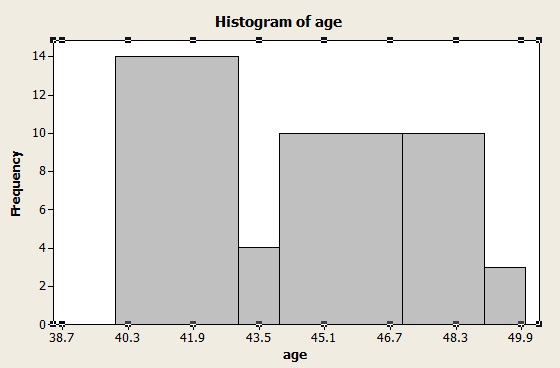
However, histograms don’t always have even bins. When a histogram has uneven bins, the height does not equal the frequency. If bin widths differ, you must instead interpret the area of each bar as the frequency (and the bar’s height effectively becomes “frequency density” i.e., frequency / width of bin). Histograms would be usually be labeled as frequency density instead of raw frequency, so this isn’t always the case, as the image below shows.
Histogram vs bar chart
A histogram resembles a bar graph, but it groups numbers into specified ranges called bins or classes. Usually, these ranges are defined by you when you create the histogram. The height of each bar represents the number of values falling within that range. A bar chart, unlike a histogram, is used to display and compare categorical data rather than numerical ranges. Each bar represents a distinct category, and the height of the bar corresponds to the frequency or value of that category.
| Feature | Bar chart | Histogram |
|---|---|---|
| Data type | Categorical | Continuous |
| Bars | Separated by spaces | Touching |
| Height of bars represents | The number of data points in each category | The number of data points in each range of values |
| Use cases | Comparing categories | Analyzing the distribution of continuous data |
Histograms effectively display outcomes for continuous data, such as:
- height
- weight
- time
However, for categorical data (e.g., favorite cat breed or favorite TV show), a bar chart is more appropriate.
Examples of when to use a histogram include:
- You want to assess if a process output follows a normal distribution
- Evaluating if a process can fulfill customer requirements
- Examining the output of a supplier’s process
- Comparing process changes between different time periods
- Assessing differences in outputs from two or more processes
- Conveying data distribution effectively and efficiently to others
The Bihistogram
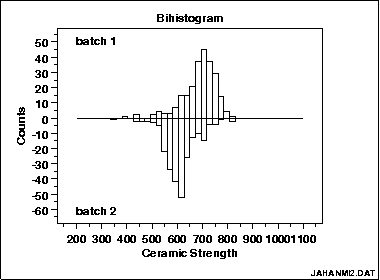
A bihistogram is a graph made from two histograms (“bi” = two) in opposite directions. One histogram is above the axis and one is below it. The histograms can be back-to-back on opposite sides of either the y-axis or the x-axis. Each half represents a different category. The bihistogram is a visual alternative to an independent samples t-test. It can be more useful than the t-test because many features are visible on the same plot, including:
- Skewness.
- Location (Where on the horizontal axis the graph is centered).
- Scale (if the graph is stretched or squeezed. See: scale parameter.)
- Outliers.
The bihistogram is rarely used compared to other statistical techniques, so most popular software doesn’t have the capability of creating one. Two programs that do have options are R and Dataplot. SPSS Also provides a means to lay histograms side by side, which effectively gives you a the same thing.
Bihistogram in R
There doesn’t seem to be a simple function in R for creating bihistograms, but StrictlyStat suggests overlaying two histograms on top of each other, for the same effect. For the code using either ggplot or base graphics, see this article the R-Bloggers site. You can also find an online calculator (that uses an R module) here at Wessa.net. I did try out the online calculator; be patient, as it can take several minutes for the graph to appear.
Dataplot
The command in Dataplot is BIHISTOGRAM
Make a histogram: Overview
A histogram is a way of graphing groups of numbers according to how often they appear. This article will show you how to make one by hand, but you’re much better off using technology, like making an Excel histogram.
Choosing bins in statistics is usually a matter of an educated guess. When you make a histogram by hand, you’re stuck with your original bin settings. With Excel (or other software), you can change the bins after you’ve created the histogram, giving you the ability to play around with bin sizes until you have a chart you’re happy with.
Okay, enough of lecturing about technology. Sometimes you might have to make a histogram by hand, especially if you’re making a relative frequency histogram; Technology like the TI-83 will only create regular frequency histograms.
Make a Histogram: Steps
Example question: Create a histogram for the following test scores: 99, 97, 94, 88, 84, 81, 80, 77, 71, 25.
-
- Draw and label your x and y axis. For this example, the x-axis would be labeled “score” and the y-axis would be labeled “relative frequency %.”
- Choose the number of bins (how to choose bin sizes in statistics) and label your graph. For this sample, question, groups of 10 (the x-axis values are the bins) are a good choice (it looks like you’ll have 5 bars of one or two items in the group).
- Divide 100 by the number of data points to get an idea of where to place your frequency “ticks”. We have 10 items in our data set, so it makes sense to count by 100/10 = 10% (one item would equal 10% of the total).

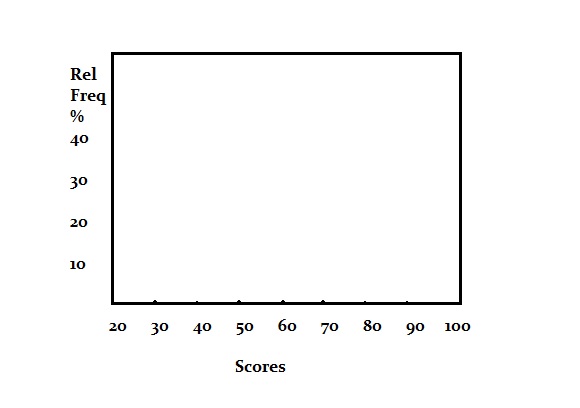
After Steps 1 through 3, your chart should look something like this example. - Count how many items are in each bin and then sketch a rectangle on the graph that corresponds to the percentage of the total that bin fills. In this example data set, the first bin (20-30) has 1 item, 70-80 has two items. If an item falls on a bin boundary (i.e. 80), place it in the next bin up (80 would go in 80-90).
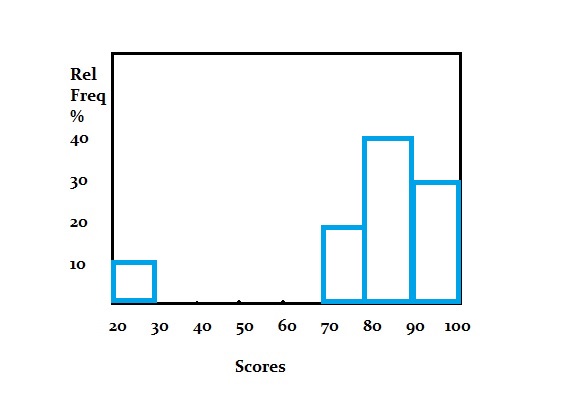 That’s it!
Tips
- If you’re unsure about how many bins to choose, consider making a rough chart online with this Shodor.org tool. Play around with the bins (change the interval size) until you get a chart that you like the look of.
- Choosing where to place the frequency ticks is also somewhat of a judgment call and is rarely an exact science. For example, if you had 21 items, you could place your ticks at 5% although each item would be slightly less than 5%. Bear that in mind when you sketch the graph.
Warning: Choosing optimal bin sizes gets very complex with large data sets (see this article for an example of the ugly math). The larger your data set, the better off you are using technology. Back to Top
How to make a histogram in Minitab
Minitab is software package that is similar to Excel or other spreadsheet programs.
- Type your data into columns in Minitab. In most histogram cases, you’ll have two sets of variables in two columns.
- Click “Graph” and then click “Histogram.”
- Choose the type of histogram you want to make. In most cases for elementary statistics, a “Simple” histogram is usually the best option.
- Click “OK.”
- Choose the name of the variable you want to make a histogram for and then click the “Select” button to move that variable name to the Graph Variables box.
- Click “OK” to create the histogram in Minitab.
- (Optional)Change the number of bins (category widths) by clicking on one of the bin headings (numbers) at the base of a bar. This opens the Edit Scale box. Click “Binning” and then click the “Number of intervals” radio button. Change the number of bins and click “OK.”
Tip: When you type your data into Minitab, make sure to give your variables meaningful names in the first row (the column header). This makes it easier to choose the variable you want to plot in Step 5.
Histogram on the TI-83: Overview
Let’s say you have a list of the heights of New York City’s tallest buildings. Here’s how to put it into the TI 83 and turn it into a histogram in a jiffy.
Histogram TI-83: Steps
Example problem: Make a histogram depicting the top 20 tallest buildings in New York City. The heights of the top 20 buildings (in feet) are: 1250, 1200, 1046, 1046, 952, 927, 915, 861, 850, 814, 813, 809, 808, 806, 792, 778, 757, 755, 752, and 750.
- Enter the data into a list. Press the STAT button and then press ENTER for the “Edit” option. Enter the first number (1250), and then press ENTER. Continue entering numbers, pressing the ENTER button after each entry.
- Press “2nd,” then “Y=” to choose “Stat Plot.”
- ENTER to choose plot “1.”
- Press ENTER again. This selects “On.”
- Hit the down arrow key (the arrow keys are at the top right), then press the right arrow key twice. Your cursor should be flashing over the histogram option, which is the top right option in the list.
- Arrow down to XList and enter the name of the list you entered your data in Step 1. If this is your first time building a list, you most likely entered the data in “L1,” which is the default list. If “L1” is not showing, press “2nd” then “1” to choose “L1.”
- Arrow down and then type “1” for “Freq.”
- Press the “graph” button. This will bring up a graph of the histogram on your screen. Press “Zoom” and then “Zoomstat” to view the histogram.
Tips
- Press the TRACE button, and arrow back and forth from left to right. This will display the number of items in each category (n=), as well as the upper and lower class limits.
- To change the class width, press WINDOW and change the Xscl. For example, if you want a class width of 100 (probably the most suitable for the above data), change “Xscl” to “100.”
That’s how to create a Histogram on the TI-83!
Example 2
Draw a histogram for the following recent test scores in a statistics class: 45, 67, 68, 69, 74, 76, 75, 77, 79, 84, 86, 90.
- Press STAT, then ENTER to edit L1.
- Enter the data from the problem into the list. Press ENTER after each entry. For example, for the first two entries you would type: 4 5 ENTER 6 7 ENTER
- Press 2nd and then Y= to access the Stat Plot menu.
- Press ENTER twice to turn on Plot1.
- Arrow down to Type, which has 6 icons to the right of it. Highlight the top right icon, which looks like a histogram, and press ENTER to select it.
- Make sure the XList entry reads “L1“. If it doesn’t, arrow down to it, Press Clear, then 2nd, 1.
- Press Graph. You should see your Histogram.
Tips
Tip: If when you press Graph, you see the message “Err: Stat”, or you just don’t see a histogram like you expect to, then Press “Window,” and try different settings. Especially try changing the Xscl (X Scale) item to a larger value.
That’s it!
TI 89 Histogram
Once you have input the data for the TI 89 histogram and graphed it, the TI-89 will even count how many items are in each bar (or class).
Example problem: Create a histogram for the following new car costs: 12,500; 22,400; 14,300; 32,200; 21,500; 19,980; 15,001; 22,001; 32,036; 35,124; 29,001; 25,006; 27,001; and 18,500.
- Press APPS and scroll to the Stats/List Editor. Press ENTER.
- Press F1 then 8 to clear the list editor of data.
- Enter “cars” as the list name by pressing 2nd ALPHA )=23 ENTER.
- Enter your data: 12500 ENTER 22400 ENTER 14300 ENTER 32200 ENTER 21500 ENTER 19980 ENTER 15001 ENTER 22001 ENTER 32036 ENTER 35124 ENTER 29001 ENTER 25006 ENTER 27001 ENTER 18500 ENTER
- Press F2 ENTER and F1 to go into Plot Setup (Define Plot).
- Press the right scroll arrow to bring up a menu for Plot Type. Press 4 for Histogram.
- Scroll down to “x” Press 2nd – (the minus key) to bring up Var-Link. Scroll down to “cars” and press ENTER.
- Scroll down to Hist. Bucket Width and enter 5000 ENTER. This is your class width.
- Press ENTER F5. Note: If you press ENTER too many times and end up at the home screen, just press the diamond key and then F3 (for graph).
- Press 3 for the trace function. Use the left and right scroll keys to move from one bar to another. (This will tell you how many items are in each class (n = x)).
Tips
- If your TI 89 histogram doesn’t show (or only part of the graph shows), you may need to change the window. Press the diamond key then F2 to check your window settings. For the above graph, your settings should be approximately 10000 < x < 40000 and 0 < y < 8. Set the xscl and yscl to 1. Press F2 then 9 to return to the graph.
- Make sure the alpha lock is turned on by checking for a little black box with “a” in it on the bottom left of your screen.